

Managing Multiple Team Accounts Without the Chaos: Why Agencies Are Turning to Profile Managers Like Incogniton
Running a handful of client accounts out of one browser window used to be manageable. Add a few more brands, a few more team members, and a few more platforms, and that same browser turns into a liability: shared cookies, accidental logouts, and the constant risk of one person’s session overwriting another’s.
For agencies, e-commerce teams, and social media managers juggling multiple clients or brands, this isn’t a minor inconvenience — it’s a daily operational risk. A single mixed-up login can mean lost work, an unhappy client, or exposed credentials.
This is the problem browser profile managers were built to solve. In this article, we’ll look at why tools like Incogniton have become standard infrastructure for teams managing multiple accounts, and how to get started with one.
Who Actually Needs This
Multi-account management shows up in more workflows than people expect. A few common examples:
- Agencies running social media, ads, or SEO for a dozen clients at once, each with their own logins for Facebook, Google, or TikTok.
- E-commerce teams operating several storefronts across different brands or regions, each needing its own clean, separated environment.
- QA and localization teams who need to check how a site or product behaves across different regions, languages, or device settings.
- Distributed teams where several people need access to the same set of client accounts without sharing a single login.
If any of this sounds familiar, the browser itself is usually the first thing that needs to change.
The Real Cost of Managing Accounts in a Single Browser
Most browsers are built around a single identity: one set of cookies, one cache, one saved-login list. That works fine for personal use, but it breaks down fast once more than one account or client enters the picture.
Session Bleed and Accidental Cross-Logins
When several accounts share the same browser profile, sessions overlap. A teammate logs into the wrong client dashboard. A saved password autofills into the wrong account. Cached data from one brand surfaces while working on another. None of this is malicious — it’s just what happens when a tool built for one identity is stretched to cover many.
Security Risk When Multiple People Share One Login
Agencies often solve this the hard way: sharing a single login and password across the team, or emailing credentials back and forth. Both create obvious security gaps, and neither scales past a few people.
There’s also a simpler, more constant problem: switching context. Logging out of one client’s dashboard, clearing the cache, logging into the next — repeated dozens of times a day — adds up to real, avoidable time loss across a team.
The table below sums up the practical difference:
| Single shared browser | Dedicated profile manager |
| No separation between accounts or clients | Each account runs in its own isolated profile |
| Manual login switching, shared passwords | Individual, permission-based access per team member |
| Risk of cross-account data leaks | Separate cookies, cache, and session data per profile |
| Hard to scale past a few accounts | Built to manage hundreds or thousands of profiles |
| No audit trail of who did what | Role-based access with clear ownership per profile |
The math is simple: every profile a team doesn’t have to log in and out of by hand is time they get back.
What a Browser Profile Manager Actually Does
A profile manager like Incogniton gives every account, client, or brand its own self-contained browser environment. Each profile keeps its own cookies, cache, and local storage, completely separate from every other profile running on the same machine.
That isolation solves the session-bleed problem directly: nothing from Profile A leaks into Profile B, no matter how many profiles are open or how many people are working across them.
On top of isolation, these tools typically add:
- Independent, customizable browser settings per profile (fonts, timezone, screen resolution, and similar display parameters), useful for QA and localization testing across regions.
- Role-based access, so team members only see and use the profiles relevant to their work.
- Cloud sync, so profile data and settings stay consistent across devices and locations for distributed teams.
- Bulk profile creation, so onboarding ten or a hundred new client accounts doesn’t mean building each one by hand.
None of this requires giving up structure for convenience. If anything, the opposite is true: a well-organized set of profiles is easier to audit and hand off than a single browser with years of mixed history in it.
How Incogniton Fits Into Agency and Team Workflows
Incogniton is a Chromium-based profile manager built around this exact use case: giving teams a structured way to organize and operate many separate browser environments.
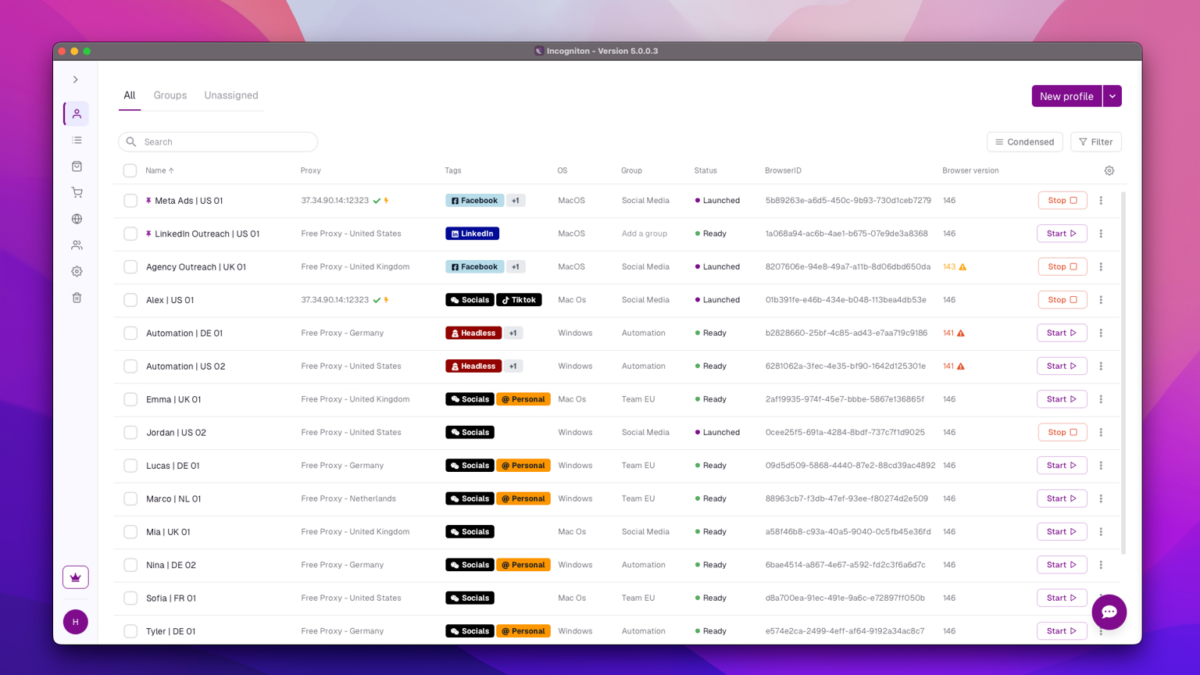
Incogniton’s profile dashboard, showing separate browser profiles organized in one place.
Organizing Profiles by Client, Brand, or Region
The platform supports up to 5,000 browser profiles, which gives agencies and larger teams enough headroom to separate work cleanly — one profile per client, per brand, per region, or per team member, depending on how the business is structured.
Proxy and Cookie Management
Incogniton supports HTTP, SOCKS4, and SOCKS5 proxies. Teams can bring their own proxy provider, use the built-in Incogniton Proxy Shop, or rely on the free built-in proxies for lighter, non-critical tasks. Assigning a dedicated proxy per profile keeps each client or region’s traffic clearly separated.
Cookie handling is also built in: a cookie collector, converter, importer, and exporter make it straightforward to preserve a session, move it between machines, or hand a profile off to a teammate without starting from scratch.
Assigning and managing dedicated proxies per profile inside Incogniton.
Automation for Repeatable Work
For teams running QA checks, localization tests, or other repeatable browser workflows, Incogniton supports Python and integrates with Playwright, Puppeteer, and Selenium. Its no-code Synchronizer tool can mirror the same action across multiple open profiles at once, which is useful for testing how a page or workflow behaves across several accounts or regional settings simultaneously.
Built for Teams, Not Just Individuals
Role-based access control lets an agency define exactly which profiles each team member can open, without handing over full account access. Profile data and settings sync through encrypted cloud storage, so a distributed team can collaborate on the same set of client profiles without breaking the isolation between them.
Getting Started with Incogniton
1. Create Your Account and Install
Head to the official download page, create an account, and install the desktop app. The free Starter plan includes 10 browser profiles for the first two months — enough to test the workflow with a handful of real clients or brands before committing to a paid plan. Setting up an account takes a few minutes, and the free plan is a low-commitment way to see whether the workflow fits your team.
2. Set Up Your First Profile
Inside the app, create a new profile for a specific client, brand, or team member. You can name it clearly, adjust display settings like timezone or screen resolution if a client’s audience is in a different region, and let each profile keep its own separate cookies and cache from the start.
3. Organize Profiles by Client, Brand, or Team Member
As more accounts come on board, group profiles logically — by client, by brand, or by the team member responsible for them. This is where the platform starts paying off: instead of one messy browser, every account has its own clearly labeled, isolated space.
4. Set Permissions and Start Working
Assign role-based permissions so each team member only has access to the profiles relevant to their work. From there, working day to day looks just like using a normal browser — except every client, brand, or account stays cleanly separated from the rest.
5. Scale Up as the Team Grows
Once the basic structure works for a handful of profiles, scaling to dozens or hundreds is mostly a matter of repeating the same setup: consistent naming, clear ownership, and permissions that match each person’s actual role. Bulk creation tools make this faster once the pattern is established.
Common Questions About Profile Managers
Is This Just for Large Agencies?
No. Smaller teams and even solo operators managing a few client accounts or side-brands run into the same session-bleed and password-sharing problems, just at a smaller scale. The free Starter plan is specifically aimed at testing this with a handful of profiles before scaling further.
What Happens if a Team Member Leaves?
Because access is role-based and tied to specific profiles rather than shared passwords, removing someone’s access is a matter of adjusting permissions rather than changing every password they ever touched.
Does This Replace a Password Manager?
Not entirely — a password manager still has its place for storing credentials securely. A profile manager solves a different problem: keeping the browser environment itself (cookies, cache, sessions, settings) separate per account, which a password manager alone doesn’t do.
The Bottom Line
Managing multiple accounts by hand — shared logins, one crowded browser, crossed fingers — doesn’t scale past a small team. A dedicated profile manager like Incogniton won’t do the client work for you, but it removes the operational risk that comes from mixing accounts in one place: isolated sessions, organized profiles, and controlled access for everyone on the team.
If your team is already juggling more accounts than one browser can safely handle, the practical next step is setting up a structure that scales with you — starting with a free Starter plan is a low-risk way to see whether it fits how your team works.
Disclaimer: The views, opinions, and content expressed in this article are those of the author and do not represent the official position, policies, or endorsements of the company.